Upsell Forecast Report
The Upsell Forecast Report allows users to forecast the possible upsells for the upcoming period and compare them with the actual upsells performed.
Perform the following steps to generate the report:
Navigate to Reports ➜ Dynamic Reports ➜ Revenue/Forecasting ➜ Upsell Forecast.
Refer to the following table and fill in the fields.
|
Field |
Description |
|---|---|
|
Report Name |
Upsell Forecast Report |
|
Start Date |
The date from which the report should be generated. It is a mandatory field that displays the current property date by default. Users can choose any future dates. |
|
End Date |
The date up to which the report should be generated. It is a mandatory field that displays the current property date by default. Users can select any date that is within a maximum date range of 365 days from the start date. |
|
Building |
|
|
Filter By |
It is a single-select drop-down list that displays two options, Room Type and Room Class. It is a non-mandatory field that is empty by default. If a filter by option is not selected, the report is generated for all the room type and room class that is sold for the selected date range. |
|
Room Type/Room Class |
Based on the in Filter By option selected, the field label is updated as Room Type or Room Class. If it is filter by Room type, all the room types of the property are displayed in a multi-select drop-down list. If it is filter by Room class, all the room class of the property are displayed in a multi-select drop-down list. |
Click Run to generate the report.
Click Save to save the report under User Favorites section.
Sample Report
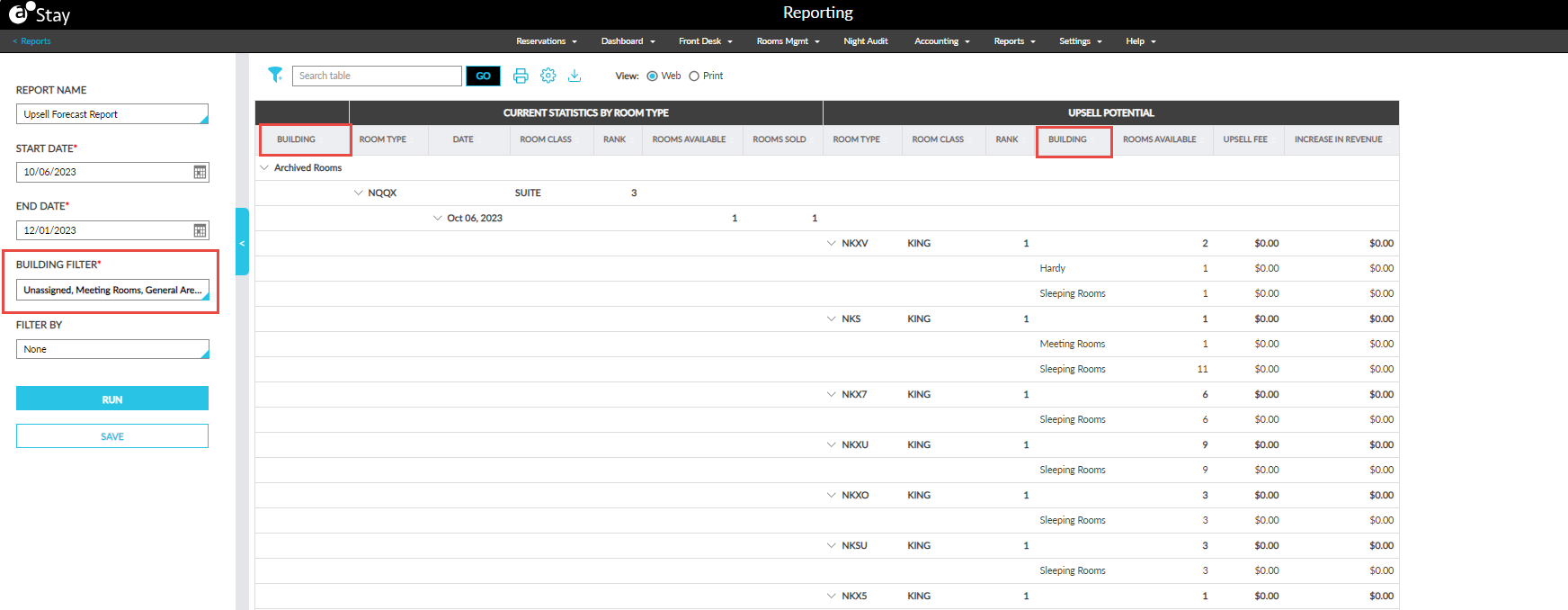
Report Fields
This report displays the following fields:
|
Field |
Description |
|---|---|
|
Building |
Displays the name of the building associated with the room type.
|
|
Current Statistics by Room Type |
The following columns are displayed under this section. |
|
Room Type |
|
|
Room Class |
Displays the room class of that room type or the room class selected in the filter. |
|
Rank |
Displays the rank associated with the room class. |
|
Date |
Displays the dates selected in the date range with an accordion. The columns in the upsell potential section is displayed when the accordion is expanded. |
|
Rooms Available |
Displays the total active rooms at the property excluding OTM rooms, for the selected room type and date. |
|
Rooms Sold |
Displays the total rooms sold for the selected room type and date including reservations with zero-dollar rate and non-zero rate with a comp type of non-comp. |
|
Upsell Potential |
The following columns are displayed under the Upsell Potential section. |
|
Room Type |
|
|
Room Class |
Displays the room class of the room type. |
|
Rank |
Displays the rank associated with the room class. |
|
Building |
Displays the name of the building associated with the room type.
|
|
Rooms Available |
Displays the total active rooms at the property excluding OTM rooms, for the selected room type and date. |
|
Upgrade Fee |
Displays the upgrade fee entered when changing from the previous room type. |
|
Increase in Revenue |
Displays the increase in revenue that is achieved when the room is upgraded from one room type to another room type whose rank is higher than the previous one. The increase in revenue is calculated as follows: Case 1: Room sold is greater than or equal to room available (Upsell)
Case 2: Room sold is lesser than room available (Upsell)
|